Reading the screen
Plans: all plans (some features are not available on every plan)
The map screen has three main parts: the "left sidebar", the "map area", and the AI chat and report buttons along the right edge.
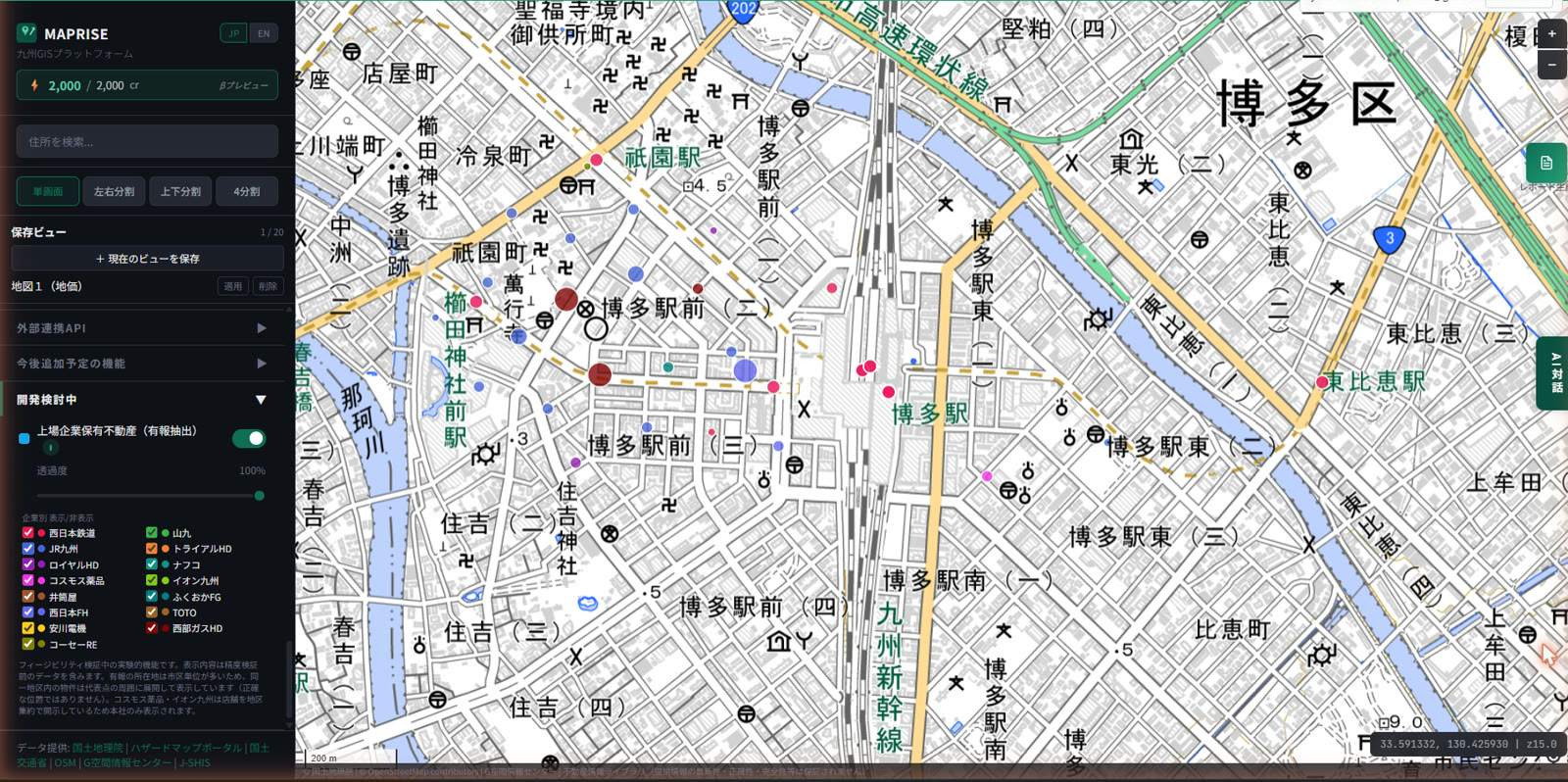
Left sidebar (from the top)
- Header: the "MAPRISE" name and the "JP / EN" language switch. Login (or the account menu once you are logged in) is shown at the top right
- AI credit display: shows your remaining credits for AI chat as "remaining / monthly limit". Press it to open the pricing page
- Address search: type an address, pick a suggestion, and the map moves there and drops a pin
- Screen split buttons: switch between "Single", "Side by side", "Top and bottom" and "4 panes". When split, tabs "Map 1" to "Map 4" show which map you are working on. The Free plan splits up to 2 panes; Starter and above up to 4
- Saved views: save the current map state (layers and position) under a name and recall it later. Shown only when logged in. Limits: Free 0, Starter 3, Pro 20, Business 100
- Layer search: type in "Search layers..." to find a layer
- Purpose presets: one-click layer combinations for a purpose, such as "Disclosure / DD preparation" or "Site acquisition". "Undo" returns to the previous state
- My Assets: register your own properties and sales areas on the map (Pro and above; see Register properties and sales areas on the map)
- Timeline: switch the era of aerial photos or the year of land prices
- Layer panel: the list of data you can overlay on the map, grouped and collapsible ("Regulations", "Land prices / real estate", "Disaster / hazard", "Nearby facilities / school districts", and more). Each row has a color legend, the layer name, an ON/OFF switch, an opacity slider and an "i" button that explains the data. For supported layers, a "⬇" button to export data also appears while the layer is ON
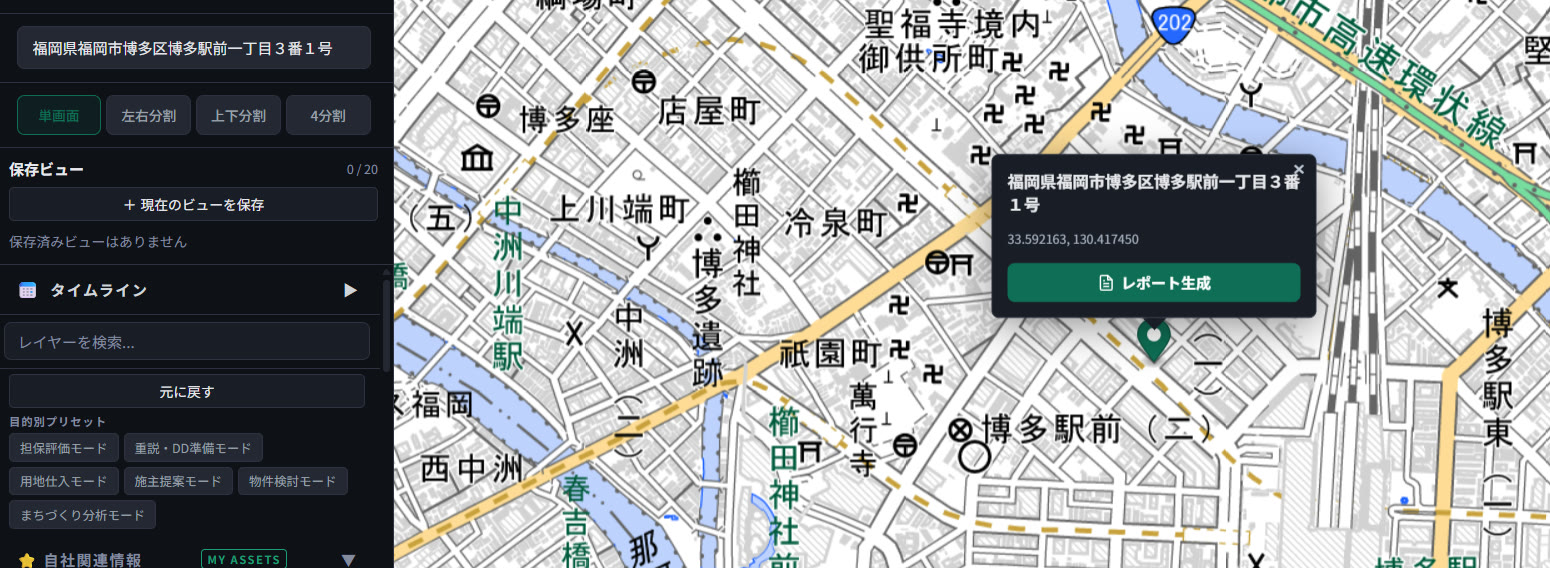
Map area
- Zoom (+ / −): the buttons at the top right of the map zoom in and out
- Legend: the "Legend" panel explains the colors of the layers on display. Press its heading to collapse it
- Coordinates: the bottom right shows the latitude and longitude of the map center and the zoom level
- Source credits: the data providers are shown at the corner of the map
- Clicking the map: clicking drops a pin and opens a popup with the address and coordinates of that point. The "Generate report" button in the popup creates a report for that location
Buttons on the right edge and the map
- AI chat: press the "AI chat" tab on the right edge to open the AI geospatial assistant. Ask in plain language and the AI looks up the data and answers. It also handles simple actions such as moving the map or showing layers, and questions about how to use features. Past conversations are in "Conversation history" (retention depends on the plan: none on Free, 30 days on Starter, 6 months on Pro, 3 years on Business)
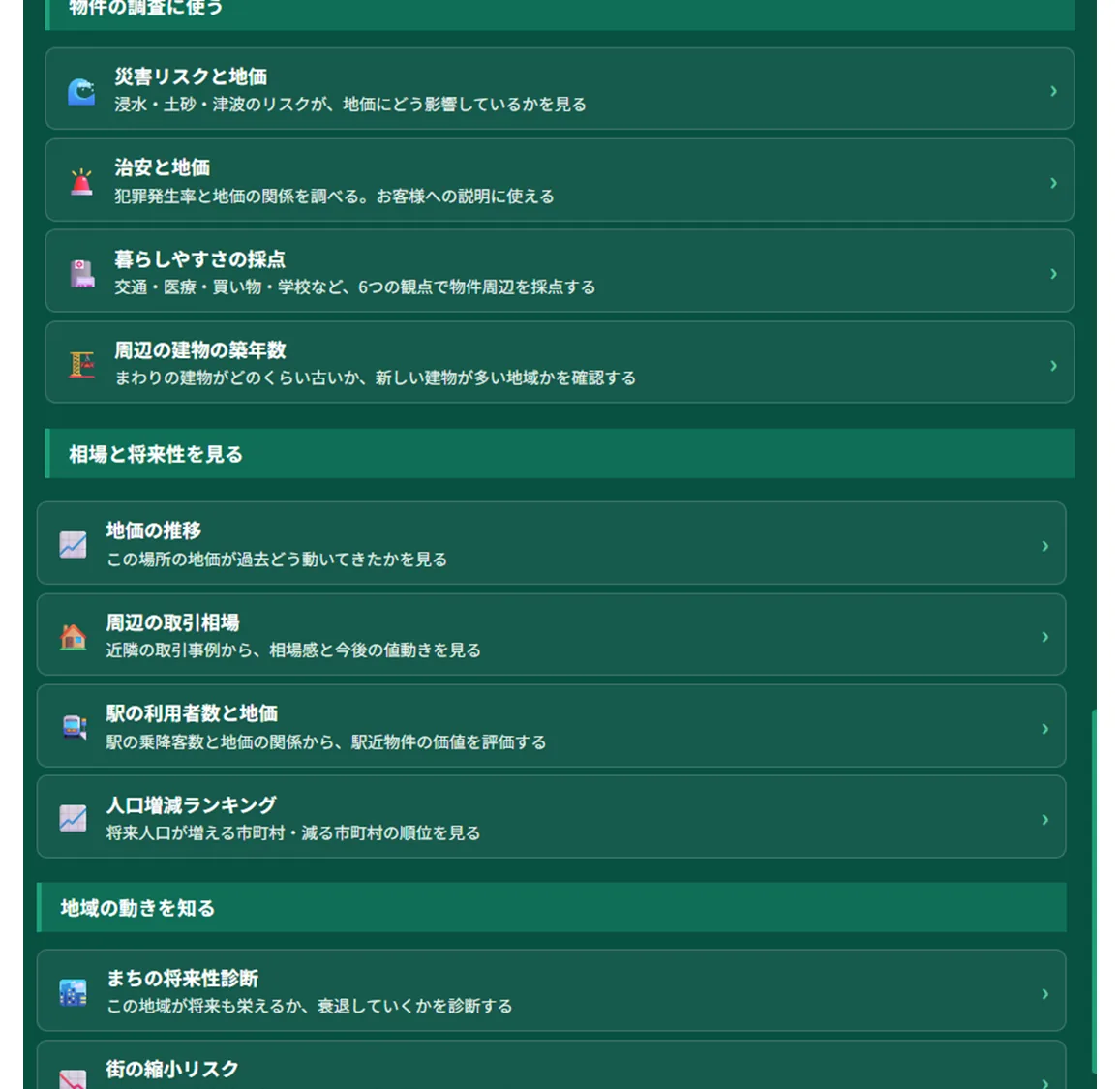
- Map analysis (analysis menu): the "Map analysis" button to the left of the input field in the AI chat panel offers 12 analyses, such as disaster risk and land prices, livability scoring and land price trends. Results appear as charts with an AI summary
- Property survey report: the green button near the top right of the map, or "Generate report" in the click popup, creates a property survey report for the location as PDF or Word
- Measure: the "Measure" button near the bottom of the screen measures distance and area on the map. For two-point distances, the walking and driving distance along roads (reference value) is also shown
Account menu
After logging in, press the person icon at the top right to see your email address and plan, "Manage plan and billing", "Manage team members" (Pro and above) and "Log out".
Notes
- AI answers may contain errors (hallucinations). Please confirm important decisions yourself or with a specialist
- The position and names of buttons may change as features are added